
FAQ
Installation
Section titled “Installation”Why is XFCE the only available option in the live environment?
Section titled “Why is XFCE the only available option in the live environment?”XFCE is considered our “flagship” desktop environment and receives the most maintenance. Other Gnoppix ISO variants were not maintained to the same standard, so we focus our efforts on delivering the best experience with XFCE.
We recommend installing Gnoppix in a VM for testing different desktop environments and window managers, as the live ISO is primarily used for installation and system recovery.
Since we do not currently have community maintainers for other desktop environments, those images are reserved exclusively for Gnoppix members until contributors step forward.
When starting the gnoppix installer nothing seems to happen?
Section titled “When starting the gnoppix installer nothing seems to happen?”While it may seem like nothing happened, a preparation script runs in the background to avoid issues such as an outdated keyring.
The script performs the following steps:
- Removes the existing keyring file found in
/etc/apt/trusted.gpg. - Updates Gnoppix keyring packages.
- Enables network time synchronization via
timedatectl set-ntp true. - Determines if the system type is UEFI or BIOS/MBR.
- If UEFI, prompts the user to select a bootloader.
This is why the installer takes a moment to load.
My installation got stuck at 33% for a while.
Section titled “My installation got stuck at 33% for a while.”This means your internet connection is either slow or unstable, causing the package manager to struggle when downloading packages.
Software management
Section titled “Software management”“unable to lock database” error
Section titled ““unable to lock database” error”sudo rm /var/lib/apt/lists/lockFile is corrupted (invalid or corrupted package)
Section titled “File is corrupted (invalid or corrupted package)”sudo apt updatesudo apt cleansudo apt install --fix-brokenIf issues persist, try reinstalling the package:
sudo apt install --reinstall <package-name>error: failed retrieving file, The requested URL returned error: 404
Section titled “error: failed retrieving file, The requested URL returned error: 404”# Examplesudo apt install telegram-desktopReading package lists...Building dependency tree...E: Unable to locate package telegram-desktopThis means your local package database is outdated, or the package name is different in the Debian/Gnoppix repositories.
sudo apt update# Then try to install the package again.How to install software from outside the official repositories?
Section titled “How to install software from outside the official repositories?”Gnoppix uses APT (the Debian package manager). If a package isn’t in the official repositories, you can:
- Check if it’s available as a Flatpak:
flatpak search <name> - Download a .deb package and install it:
sudo apt install ./package.deb - Use Snap:
snap install <name>
When I try to open Discord, a window opens notifying me of an update
Section titled “When I try to open Discord, a window opens notifying me of an update”Example:
Section titled “Example:”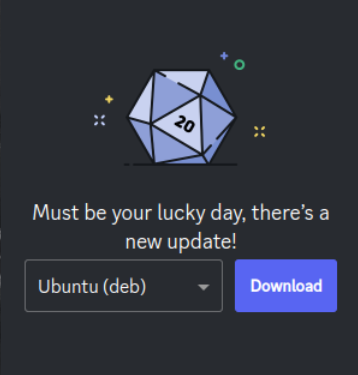
This is because Discord released an update that isn’t yet available in the Gnoppix repositories.
To work around this issue, download the latest .deb package from the Discord website and install it with:
sudo apt install ./discord*.deberror: could not remove /var/cache/apt/archives/
Section titled “error: could not remove /var/cache/apt/archives/”Example:
Section titled “Example:”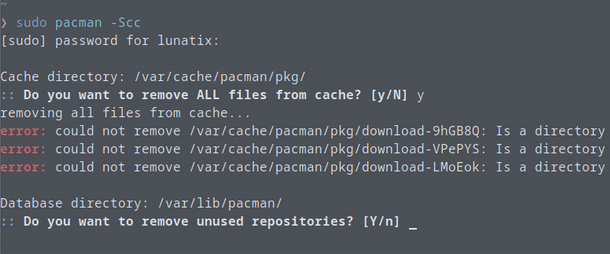
This usually appears when there are partial or locked downloads in the APT cache.
sudo apt clean# Or to remove only partial packages:sudo apt autocleanERROR: module not found: ‘nvidia’, ‘nvidia_modeset’, ‘nvidia_uvm’, ‘nvidia_drm’
Section titled “ERROR: module not found: ‘nvidia’, ‘nvidia_modeset’, ‘nvidia_uvm’, ‘nvidia_drm’”==> ERROR: module not found: 'nvidia'==> ERROR: module not found: 'nvidia_modeset'==> ERROR: module not found: 'nvidia_uvm'==> ERROR: module not found: 'nvidia_drm'Possible causes:
- The NVIDIA kernel modules are not built for your current kernel version.
- You may be missing the NVIDIA driver package for your kernel.
sudo apt install nvidia-driver firmware-nvidiaGitHub Homepage makes the browser unusable and extremely slow.
Section titled “GitHub Homepage makes the browser unusable and extremely slow.”- The Gnoppix browser disables WebGL by default for privacy reasons. GitHub depends on WebGL for rendering its homepage.
- Re-enable it as shown in the screenshot:
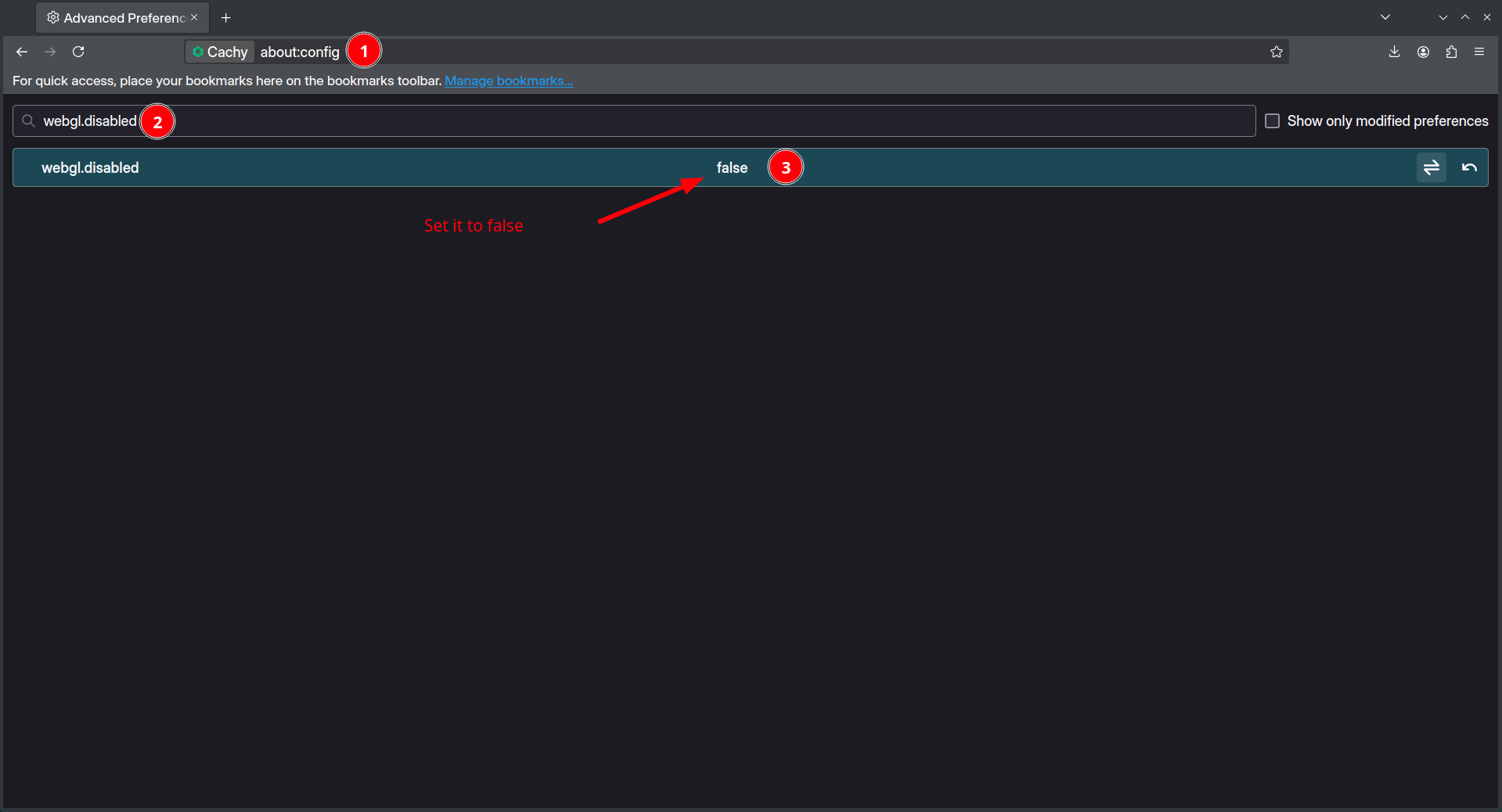
- After enabling WebGL, restart your browser and try again.
- Re-enable it as shown in the screenshot:
Your browser is being managed by your organization. Do I need to worry?
Section titled “Your browser is being managed by your organization. Do I need to worry?”- No. This is because we include a policies file that disables certain features and adds modifications such as additional search engines.
Some keyboard combinations are not working in certain websites like Photopea
Section titled “Some keyboard combinations are not working in certain websites like Photopea”- This is caused by the
privacy.resistFingerprintingfeature in Firefox.- Follow the screenshot to disable it:
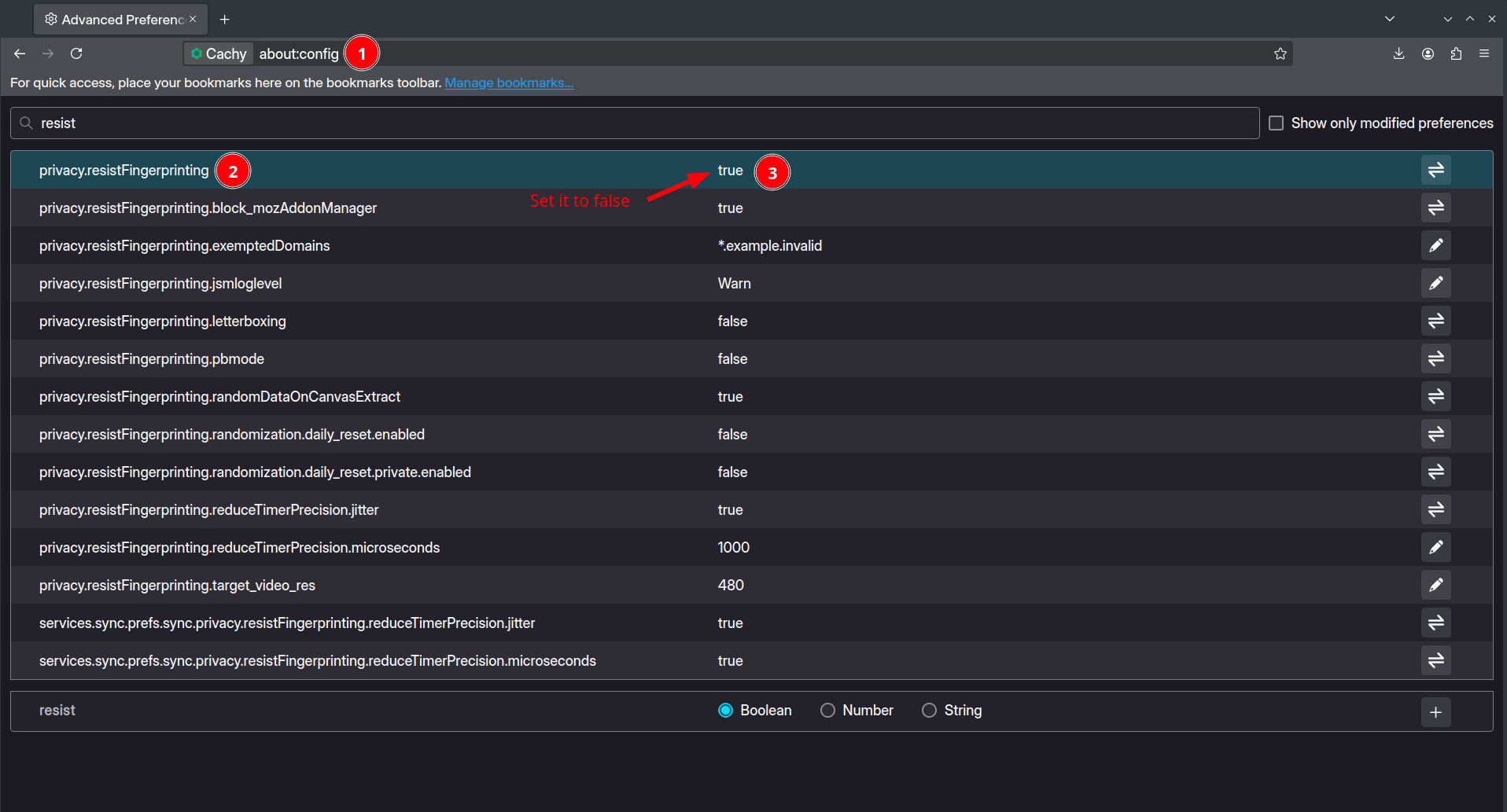
- After disabling this setting, restart your browser and the keyboard combinations should work again.
- Extra tip: Search for
webgl.disabledand set it tofalseto enable hardware acceleration in Photopea.
- Follow the screenshot to disable it: