
Gnoppix AI Email Support
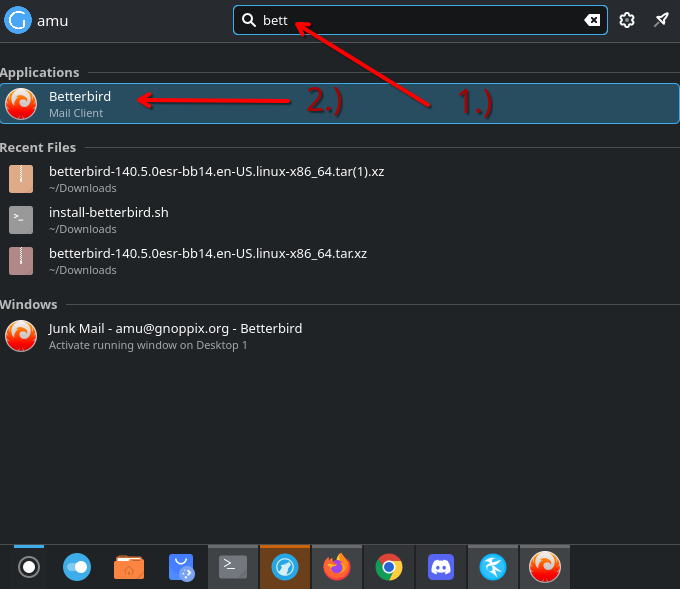
At Gnoppix, we recently replaced Thunderbird with Betterbird, a more user-friendly and community-driven fork. Betterbird offers three distinct advantages: exclusive new features, unique bug fixes, and early access to fixes that may not reach Thunderbird until a later stage.
ThunderAI: AI-Powered Email Intelligence
We have integrated ThunderAI, a powerful add-on that leverages ChatGPT, Google Gemini, Claude, and Ollama to streamline email management. By allowing users to define custom prompts and utilize external data, ThunderAI can analyze, draft, and optimize emails. It also automates administrative tasks like assigning tags and creating calendar events, ensuring more professional and efficient communication.
Installation Guide If you are using a Gnoppix version prior to Gnoppix 26, you can install the “ThunderAI” plugin via the Betterbird Add-ons section. Please ensure that the gnoppix-ai metapackage is also installed on your system.
Run:
‘’’ apt install gnoppix-ai ‘’’
How it works
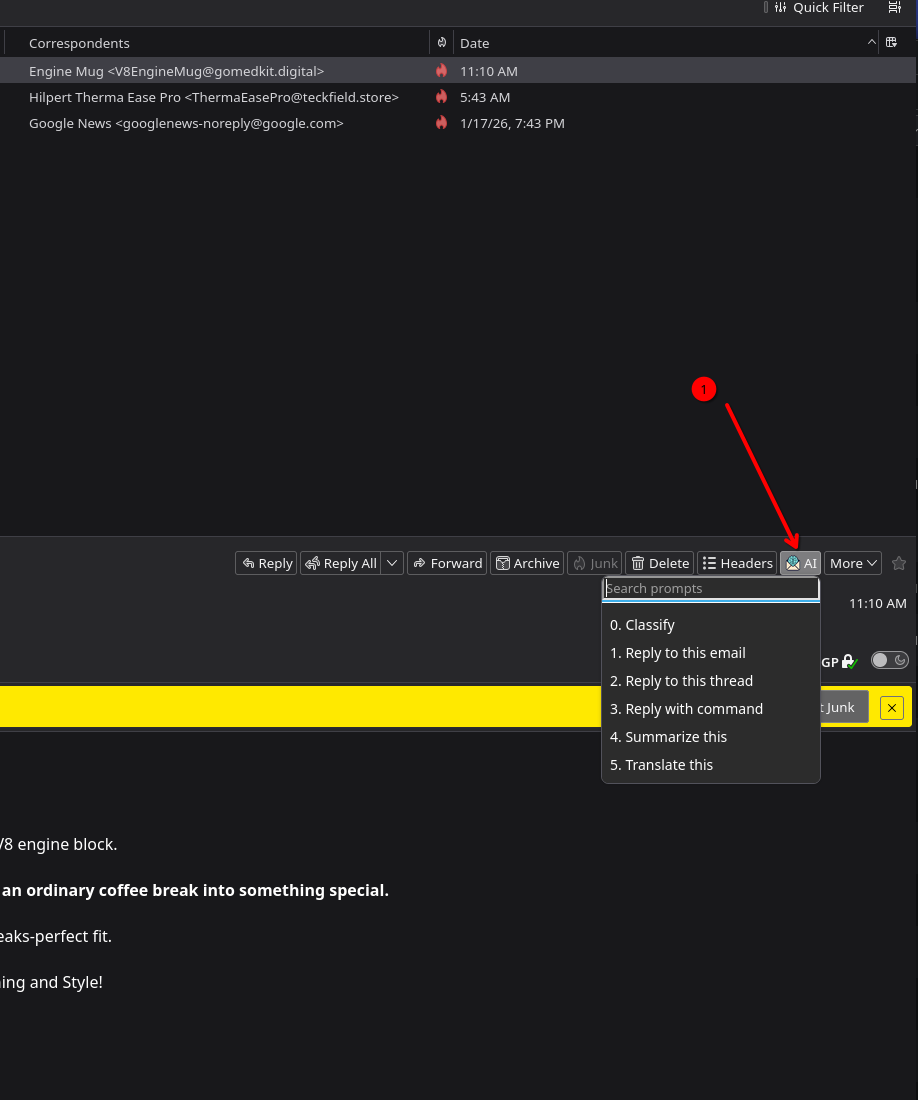
Section titled “How it works”Once you have configured Betterbird, simply click on an email to view the interface shown below:
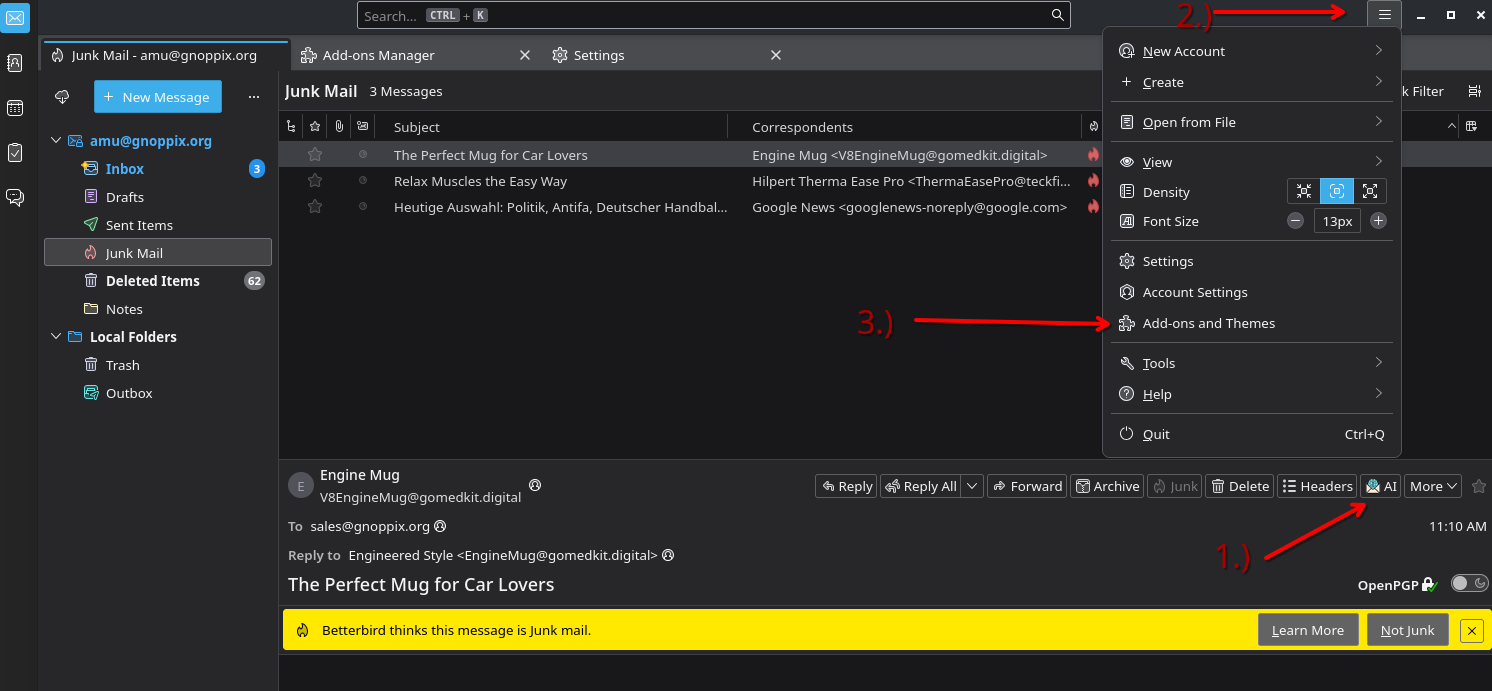
1.) Check if you have the AI bottom too.
2.) You can also click to 2.)
3.) Click on Add-on and Themes
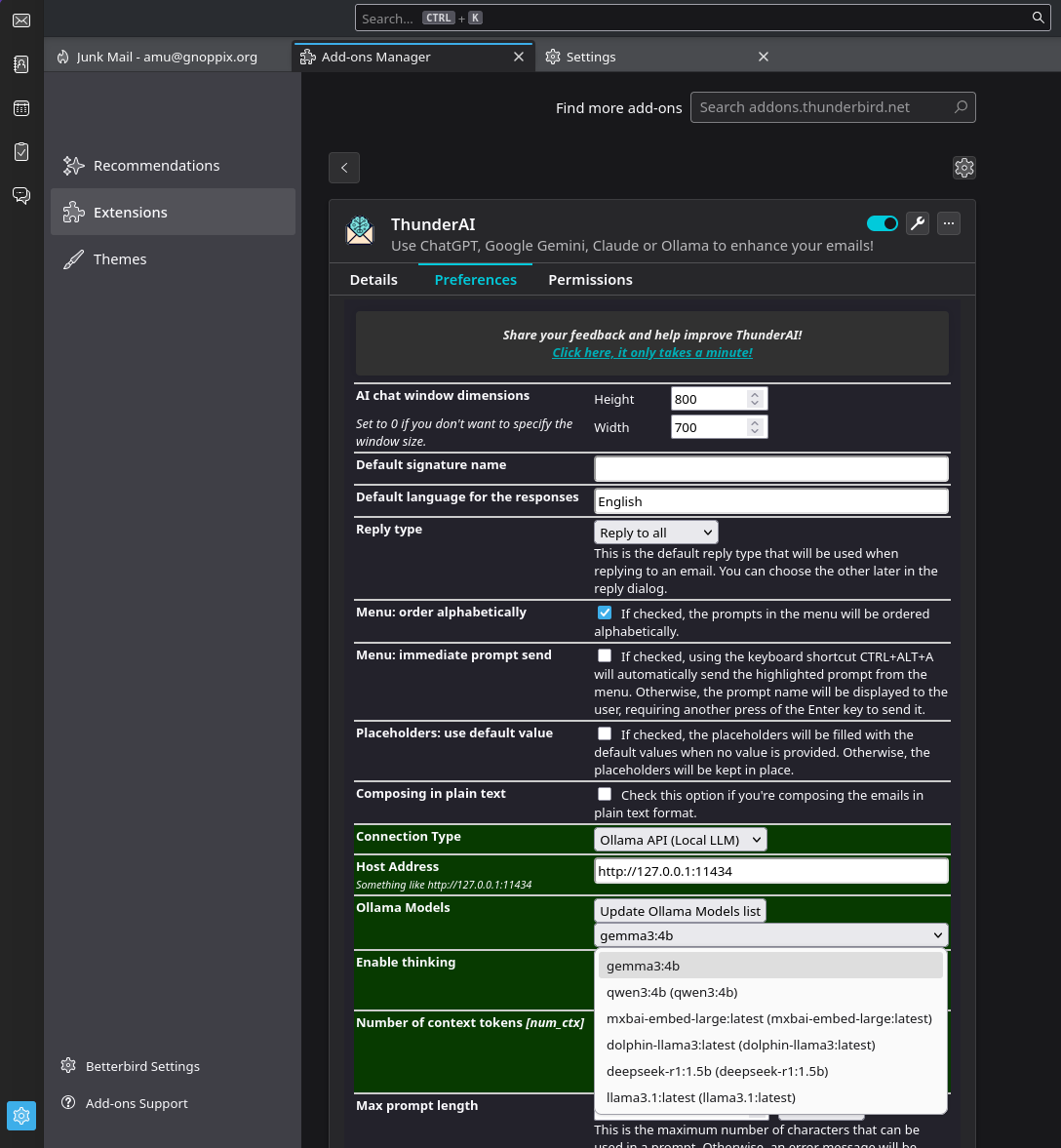
In the Extensions menu, ensure the add-on is enabled. If you do not plan to use it for an extended period, we recommend disabling it to optimize performance.
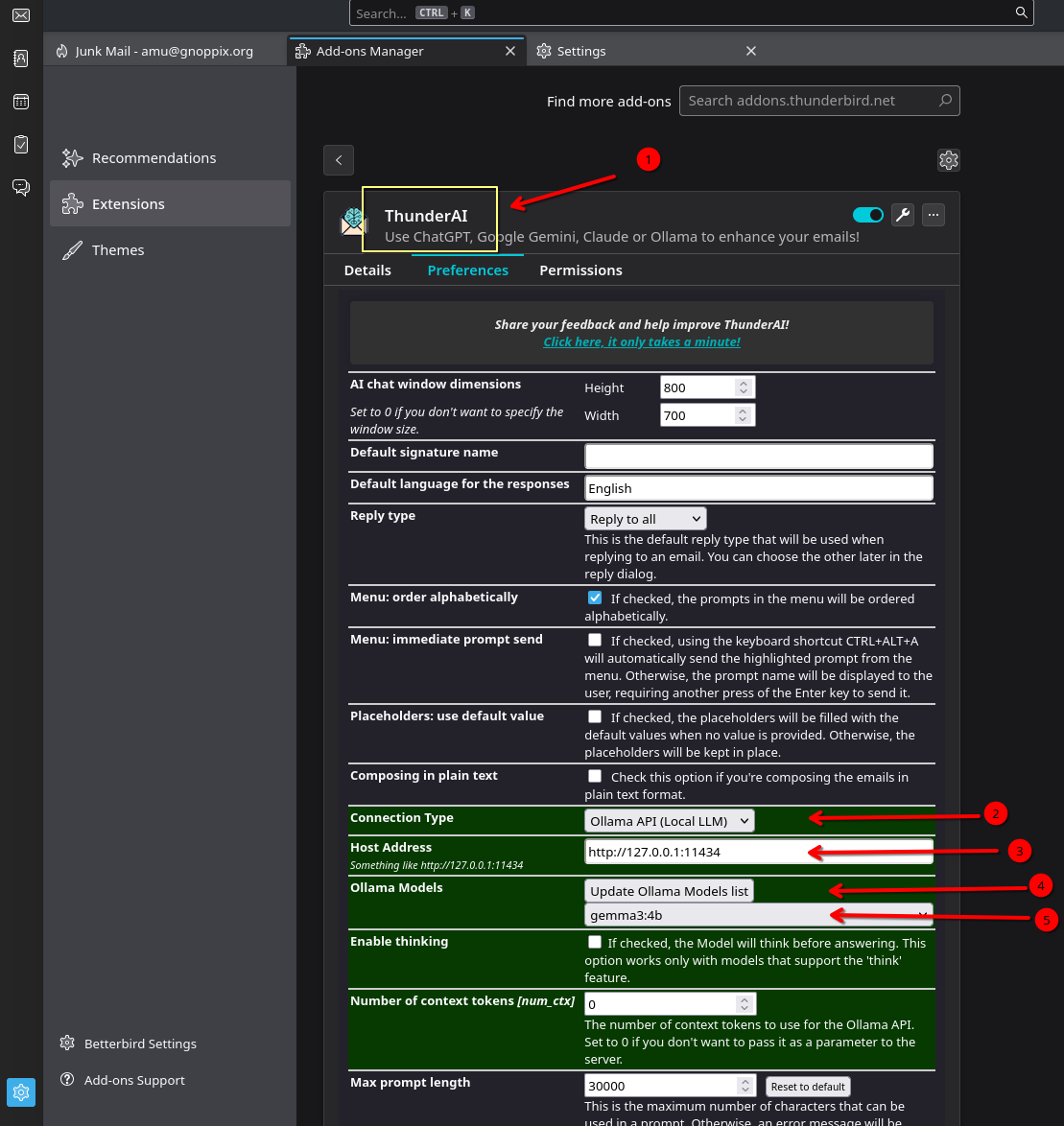
1.) Make sure the addon is enabled
2.) Switch to Ollama API
3.) insert http://127.0.0.1:11434
4.) click on “Update Ollama Models List”
5.) Choose whatever model you want to use. Try multiple, it give you different results
Scroll down to the ‘Manage your Prompts’ section to add new functions or modify existing ones. Another key feature is the use of data placeholders. You can find a complete overview of all available placeholders here: https://micz.it/thunderbird-addon-thunderai/data-placeholders/
If you enable automatic features—such as tagging or spam detection—ThunderAI will send a prompt to your configured service every time an email is received.
Data privacy depends entirely on the service you connect to. We strongly advise against sending personal or sensitive emails to unknown AI providers. For maximum security, use local AI (such as Ollama); this ensures your data never leaves your computer.
Using Ollama To use Ollama, you must first enable and configure it on your system. Please refer to our guide: https://forum.gnoppix.org/t/ollama-on-linux-a-guide-to-cpu-gpu-centric-computing/24
We encourage you to experiment with the prompt settings; customizing them will make your email workflow significantly more efficient. However, we recommend becoming familiar with the basic functions first.
The primary advantage of this integration is its compatibility with local AI. While you can use external services like Gmail, your data is no longer private once it leaves your system. Without local AI, your email essentially becomes as public as a postcard—if you remember what those are!