
Gnoppix Suite
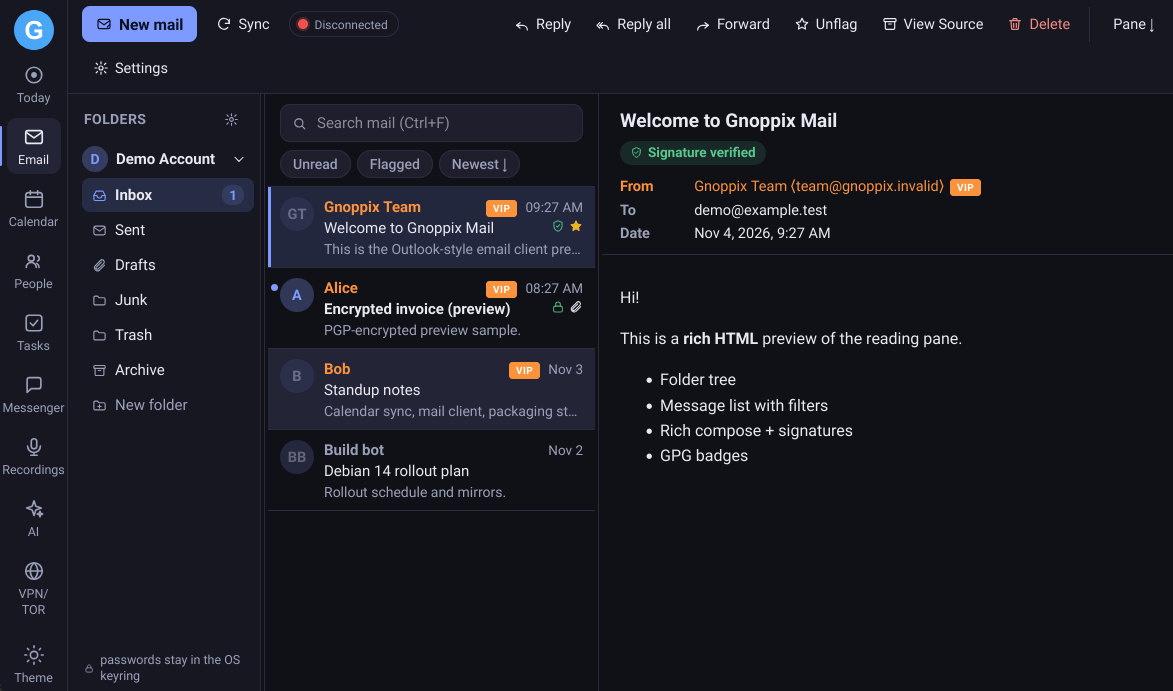
The core of this system is built around our secure email service at https://gnoppix.me. Both email communications and stored data are fully end-to-end encrypted, ensuring that unauthorized third parties cannot intercept any information. However, security ultimately hinges on the strength of your encryption key. A weak password such as “12345678” can be compromised in less than two seconds using modern computational hardware. Conversely, a modern 16-character complex password cannot be decrypted even under post-quantum attack models. We strongly urge you to use proper, robust passwords even the strongest post-quantum encryption cannot protect your privacy if your password is the weak link.
Development began in 2023 out of necessity. After evaluating numerous email clients each presenting its own set of advantages and limitations I began building a custom client tailored to my precise workflow requirements. Specifically, I required a mechanism where flagging an email automatically generates a corresponding task or calendar event alongside a unified daily task overview. Furthermore, clicking on any task or calendar entry needed to provide a direct backlink to the source email. Finding no existing solution that offered this level of native integration, I chose to develop it myself to eliminate manual copy-pasting and maintain peak productivity.
Please note: After reaching out to the community to inquire about potential interest in co-developing this software, I received no response. Consequently, this extensive work will not be released as open-source software and will remain strictly exclusive to Gnoppix Members. I cannot confirm at this stage whether an open-source edition or a paid version will be made available in the future. In any case, I hope you enjoy using the platform.
Feel free to share any ideas or suggest optimizations.
Gnoppix Suite — User Guide
Section titled “Gnoppix Suite — User Guide”Gnoppix Suite is a desktop suite for Linux (XFCE and any X11 desktop) with seven modules behind a left app-switcher rail: Email (default), Calendar, People, Tasks, Recordings, AI and VPN/TOR.
1. Getting started
Section titled “1. Getting started”Install
Section titled “Install”- From the
.deb:sudo apt install gnoppix-suite - The app appears in your desktop menu as Gnoppix Suite, or start it from a
terminal with
gnoppix-suite.
First launch
Section titled “First launch”The rail on the far left switches modules. Your last-used module and theme are remembered between launches. Language is detected from your system; change it any time in Email → settings (gear) → General.
2. Today (day summary)
Section titled “2. Today (day summary)”The Today entry at the top of the left rail gives you the day at a glance:
- Calendar today every calendar entry that falls on today (all-day entries first, then timed ones; entries spanning several days are included). Click an entry to open it directly in the calendar, in its month, with the detail card open.
- Tasks due today your open tasks with a due date today. Tick the box to mark one done; click the row to jump to the task list.
- Top 5 flagged emails the five newest flagged (marked) emails across all your accounts. Click one to open it in Email.
- Top news the three top Google News headlines for your country. The country follows your app language (German → Deutschland, English → United States …) and you can change it in the card’s country selector your choice is saved. Click a headline to open it in your default browser. The headlines are fetched by the app itself (nothing remote ever loads inside the app window).
- Gnoppix Forum latest the three newest topics from forum.gnoppix.org; click to open in your browser.
News and forum entries are cached locally (an unencrypted file titles and links only): Today opens instantly even offline, the app refreshes the feeds in the background every 18 minutes, and the ⟳ button in the Today header updates news, forum, tasks and flagged emails on demand.
The summary keeps itself current as mail, tasks and calendar change.
3. Email (default module)
Section titled “3. Email (default module)”Outlook-style layout: folder tree | message list | reading pane. The reading pane can sit on the right or at the bottom (layout toggle in the toolbar).
Add an account
Section titled “Add an account”- Open Settings (gear icon in the mail toolbar) → Accounts tab → Add account.
- Enter display name, email address and password.
- Press Detect the suite tries known providers (Gmail, Outlook/Hotmail,
Yahoo) and then generic candidates for your domain in order:
imap.<domain>,mail.<domain>,<domain>on port 993 (IMAP over SSL) or 995 (POP3 over SSL), with outgoingsmtp.<domain>:465 (SSL) ormail.<domain>:587 (STARTTLS). Each candidate is tested live before it is kept. - If detection is not right, set the servers manually: protocol IMAP or POP3,
host, port, and TLS mode (
imaps/starttls/none, same for SMTP). - Test verifies incoming + outgoing connections before saving.
Passwords are stored only in your operating system’s secure keyring never in the app’s database. If your desktop asks to unlock a keyring on first save, allow it.
Reading and organizing mail
Section titled “Reading and organizing mail”- Click a message card to open it in the reading pane; unread/flagged filters and sorting are in the toolbar, search box at the top of the list.
- Mark read/unread, flag, archive, move to another folder, or delete. Deleting moves the message to Trash. You can also right-click a message in the list to get a Delete menu it moves it to Trash the same way; the menu closes with a click elsewhere or Escape.
- Emails from senders already in your address book are highlighted: the sender’s name in the list and the From row in the reading pane are shown in orange with a VIP chip. Click VIP to open that contact in People directly. For a sender who is not yet in your address book, the reading pane shows + Contact one click adds them, and their emails turn VIP from then on.
- Flag an email to turn it into work: it creates a task and a calendar entry from the email’s content (a due day written in the subject/body is used; otherwise today). The task lands in the task list you last opened in Tasks and shows a small mail chip; the calendar entry has an Open email button either jumps back to the original message. Delete the email for good (from Trash, or POP3 delete) and the task is completed and the calendar entry is removed automatically.
- Folders: Inbox, Sent, Drafts, Junk, Trash, Archive plus any custom folders on your server. Create folder and Empty folder are in the folder pane menu.
- Only the newest messages sync per account (default: last 50 new messages per folder per sync) to keep startup fast.
Writing mail
Section titled “Writing mail”- Compose opens a rich editor: bold, italic, lists, links, inline images.
- Attach files by clicking or by dragging them into the composer; attachments are staged until you send.
- A message that arrives with files shows an Attached files: field below the
Date in the reading pane (marked with a paperclip). Each file name is a button:
clicking it saves the file into your
Download/emailsfolder original name, with-1,-2… suffixes if a file of that name already exists and a notification confirms where it was saved. Attachments inside encrypted mail appear once the message is opened (encrypted attachments are recovered automatically). - Your signature (Settings → Signatures tab, plain text or HTML per account) is appended automatically when composing or replying.
- Sending a message without pressing Send saves it as a draft automatically; drafts appear in the Drafts folder and can be resumed or discarded.
- The To field suggests contacts you use often (from the People module).
Encrypted mail (OpenPGP)
Section titled “Encrypted mail (OpenPGP)”In Settings → OpenPGP tab you can import an existing GnuPG key, generate a new one, export or delete keys, and pick per account which key to use and when: sign only, encrypt only, or sign+encrypt. Sent messages get a green verified badge or a lock badge in the reading pane; incoming signed messages are verified automatically. If your secret key has a passphrase, two modes are available. Default: the app uses your system GnuPG pinentry window you type the passphrase once per login session (GnuPG’s agent caches it), not on every app start. Optional: save it in the same tab (Save passphrase stored only in the OS keyring) for fully automatic decrypt/sign with zero prompts; messages fetched earlier that still showed the armored block then decrypt the next time you open them.
Automatic sync
Section titled “Automatic sync”Accounts sync automatically every 15 minutes by default (per-account interval is editable in the Accounts tab). Sync now forces an immediate check. Desktop notifications for new mail can be turned on/off in the General tab.
4. Calendar
Section titled “4. Calendar”Month and Week views, dark or light theme (moon/sun button on the rail).
Add calendars
Section titled “Add calendars”Open Sources (toolbar) → choose a type:
- Google Calendar (public) paste the calendar address of any public Google
calendar (
…/calendar/ical/<id>/public/basic.ics). - Private Google calendar in Google Calendar settings → Integrate calendar, copy the secret address in ICS format and add it as a custom ICS source. Keep that URL private; anyone who has it can read your calendar.
- Gnoppix mail account pick one of your configured mail accounts; the suite connects to its CalDAV calendar directly, so events you create here also appear on your server (and vice versa).
Each calendar gets a color and an enable/disable switch in the sidebar. Removing a source removes its cached events locally (never deletes anything on the server).
Events
Section titled “Events”- Click a day (or Create) to add an event: all-day or timed, with recurrence (daily / weekly / monthly / yearly).
- Local “My Events” calendar is fully editable; CalDAV calendars are editable too (changes sync to the server); imported ICS feeds are read-only.
- Delete is two-step: first click arms the button (“Confirm delete?”), a second click deletes. This protects you from accidental one-click deletion.
5. People (address book)
Section titled “5. People (address book)”Thunderbird-style address book: directory sidebar (All contacts / Favorites / Labels) on the left, a cards list with sortable column headers in the middle, and a contact Details pane on the right the same three-pane layout as Thunderbird’s Address Book.
- Column headers are clickable to sort (▲/▼); the ▾ menu toggles extra columns (Nickname, Address, Title, Department, Company, Labels, Birthday), like Thunderbird’s “Columns” menu. Default visible: Name, Email, Phone.
- Selecting a contact shows Thunderbird-style detail sections: Email addresses, Phone numbers (Home/Work/Mobile with type labels), Addresses, Notes, Websites, Other (birthday/anniversary) plus the Write button that jumps to the mail composer and an Edit button.
- Editing opens a Thunderbird-style vCard form in the details pane (fieldsets: name/nickname/display name, email, phone Home/Work/Mobile, street/city/state/ZIP/ country, title/department/company/website/birthday/anniversary, notes, labels).
- A Frequent contacts row (like Thunderbird’s) sits above the list and shows the people you email most; until then it says “No frequent contacts yet.” Contacts you email often get a ↻ “frequent” badge and float to the top of the To-field suggestions in the composer.
- Reading pane has a quick Add contact button for new senders.
- Import / Export work with CSV files and vCards (
.vcf, Thunderbird fields: NICKNAME, TITLE, ORG, URL, TEL;TYPE=WORK/CELL, ADR) CSV headers follow your app language. - A contact’s Email action jumps straight to the mail composer.
6. Tasks
Section titled “6. Tasks”Thunderbird-style task tree: lists on the left, filter bar, fulltext search, quick-add bar, drag to reorder.
- Multiple lists (“My Tasks” always exists); add subtasks under any task.
- Filters: All, Today, Next Seven Days, Not Started, Overdue, Completed, Incomplete same semantics as Thunderbird’s “Filter Tasks”. The chosen filter is remembered.
- Search box filters tasks by title and notes across the active list. Priority follows Thunderbird values (None / Low / Normal / High).
- Start date and due date (date + optional time), notes; overdue tasks are marked red.
- Completed tasks collapse into a “Completed” group you can expand (in the All filter).
- Deleting a parent task deletes its subtasks. Drag top-level tasks to reorder while in the default due-date order under the All filter.
7. Messenger (coming soon)
Section titled “7. Messenger (coming soon)”The rail carries a Messenger entry below Tasks: the Gnoppix Post-Quantum messenger is under development. The module view shows the teaser “Gnoppix Post-Quantum messenger coming soon” and a big Read more button that opens gnoppix.org/messenger in your default browser; “Coming soon” sits under the button.
8. Recordings
Section titled “8. Recordings”Voice memos in the style of GNOME Sound Recorder, reachable from its own rail button below Tasks.
- Record captures from the microphone (Opus/WebM by default). A live level meter shows the waveform while recording and a red timer counts elapsed time.
- Pause / Resume during a recording; Stop saves it automatically. Files
are stored in the app data directory (
recordings/) and never overwrite an existing name duplicates get numbered like GNOME Sound Recorder does. - Each entry shows its name, date (“today”, “yesterday”, “N days ago”), duration and a cached waveform. Play streams it back (click again to stop), Rename changes the file, Delete removes recording and file.
ThunderAI-style assistant for mail and text work, in its own rail button below Recordings. Works with local models (Ollama is the default no account or API key needed) as well as OpenAI, Anthropic, Google Gemini and any OpenAI-compatible server (LM-Studio, vLLM…).
- Chat: streamed multi-turn conversation with your configured model.
- Actions: ThunderAI’s prompt library over any text rewrite polite / formal, proofread, summarize into bullets, classify tone, spam check, suggest tags, translate, draft a reply. Results stream in place.
- Extract: paste an email or note; the AI returns structured JSON (ThunderAI’s get_task / get_calendar_event prompts) and one click turns it into a real Task or Calendar event.
- Transcribe: voice memos from the Recordings module can be transcribed with a multimodal model; transcripts are saved per recording.
- Settings: provider, host, model picker (loads the server’s model list), API key (stored in the OS keyring, never in the database), num_ctx and thinking-mode toggles.
10. VPN / TOR
Section titled “10. VPN / TOR”The VPN module runs GnoppixCTL, the Gnoppix Tor/VPN client, as a normal
application window (it must be installed at /opt/gnoppixctl/GnoppixCTL).
Opening the module starts GnoppixCTL and brings it to the foreground; if it is
already running started here or from the desktop menu it is simply brought
to the front, never launched a second time.
Switching to another module leaves GnoppixCTL running. In the VPN toolbar you can Bring to front (show its window again) or Stop (close the GnoppixCTL window). Closing the suite does not close GnoppixCTL close it via its own window button when you want it gone.
11. Post-quantum identities
Section titled “11. Post-quantum identities”Settings → Post-quantum manages post-quantum identities a quantum-resistant key type based on the standardized algorithms FIPS 204 (ML-DSA, signing) and FIPS 203 (ML-KEM, encryption). Each identity is a pair of certificates: a signing certificate and an encryption (KEM) certificate. Private keys are kept only in the system keyring, never in the mail database.
- Generate identity give a name and your email; the certificate pair is created and listed.
- Export / Import export copies your identity’s PEM bundle (share it so others can encrypt to you); import a contact’s PEM bundle to be able to encrypt for them. Imported certificates are validated on import, marked “imported” and are public-only.
- Mail integration in Settings → Mail → account, set Post-quantum mail encryption to Sign, Encrypt or Sign + Encrypt (exactly the OpenPGP modes, just with post-quantum ciphers; PQ overrides the OpenPGP mode when set) and optionally pin a specific PQ identity instead of Auto (match account email). Outgoing messages are handled automatically: Sign keeps your text readable and appends a post-quantum signature block; Encrypt / Sign + Encrypt seal the body into a PQ envelope every recipient must have an imported PQ certificate; if one does not, the app automatically falls back to OpenPGP encryption using that recipient’s GPG key (and only fails if neither cipher is available). Either way, mail that was encrypted with the older GPG method keeps opening transparently the app detects per message which cipher was used, so GPG-era and PQ-era mail coexist in the same account. Incoming mail is opened and verified automatically, showing the same lock/verified badges as OpenPGP mail. When the sender’s identity is still unknown to you, the message shows an Import the sender’s PQ identity button after importing, open the message again and it decrypts/verifies. Attachments are not encrypted by the envelope yet (same as the OpenPGP path).
- Export saves the public certificate bundle (never your private keys
those stay in the system keyring) into your system download folder as
<fingerprint-tail>.pq.pub.pem; how to inspect and cryptographically verify it with OpenSSL is documented indocs/PQ-OPENSSL-VERIFY.md.
Delete asks for confirmation and removes the identity together with its keyring seeds.
12. Languages
Section titled “12. Languages”The suite ships in English, German, Spanish, French, Japanese and Chinese. Pick one in Settings → General; all labels, folder names (Inbox, Sent, …), date names and CSV headers follow the choice.
13. Where your data lives
Section titled “13. Where your data lives”| Data | Location |
|---|---|
| Mail, contacts, tasks database | ~/.local/share/org.gnoppix.calendar/mail.db |
| Calendar database | ~/.local/share/org.gnoppix.calendar/ |
| Account passwords | OS keyring only (never in the database) |
| Downloaded mail attachments | ~/Download/emails/ (references live in mail.db) |
| Voice recordings | ~/.local/share/org.gnoppix.calendar/recordings/ (rows in mail.db) |
| Today feed cache | ~/.local/share/org.gnoppix.calendar/feeds.db unencrypted by design; only news/forum titles, links and your country preference, never secrets |
If you stop using the suite, remove it with your package manager; your local databases stay in place unless you delete them.
14. Troubleshooting
Section titled “14. Troubleshooting”- Mail syncs nothing but tests pass check the incoming server setting; some
providers need
starttls(port 143) instead ofimaps(993). Custom server folders are supported; re-run Sync now after changes. - “Password not stored” error your desktop keyring may be locked or absent.
On GNOME/XFCE unlock the login keyring; on minimal systems install a Secret
Service provider (e.g.
gnome-keyring). - Encrypted mail won’t decrypt make sure the OpenPGP tab shows the key your sender encrypted to (import it if missing). If that secret key has a passphrase, type it when GnuPG’s pinentry window appears (once per login) or save it in the OpenPGP tab (Save passphrase, OS keyring) for automatic handling; the message decrypts the next time you open it. A pinentry window that pops up during background sync can be cancelled the body stays armored and is retried when you open the message.
- VPN module says it could not start GnoppixCTL install GnoppixCTL
(
/opt/gnoppixctl/GnoppixCTL); the module needswmctrlandxdotool, which the package installs automatically. If its window opens behind other windows, press Bring to front. - Screen reader / accessibility accessibility is enabled on systems with a
working accessibility bus; if WebKitGTK crashes on your system, start with
NO_AT_BRIDGE=1 gnoppix-suite.
2026-11 update: Mail
Section titled “2026-11 update: Mail”- Drag & drop between folders click a message card in any folder, hold the left mouse button and drop it on a folder in the left pane; the target folder highlights while hovering, a compact sender·subject chip follows the cursor, and a “Moved to …” toast confirms. Dropping onto a folder of a different account is refused with a notice.
- Delete goes to Trash the Delete button (and the keyboard Delete key) moves the selected message into the Trash folder; drag it out of Trash to restore it.
- View Source button in the reading pane. It opens the complete original message: every header as stored on the mail server (Return-Path, full Received chain, DKIM/ARC seals …) plus the raw body. For older messages the first click pulls the full copy from the server once, so later opens are instant. If the message is no longer on the server (or is a local draft), the header block is rebuilt from stored fields and clearly labeled as reconstructed. Click again (“Close source”) to return to the normal view.
- Automatic decryption in the background encrypted (armored) messages decrypt themselves shortly after login; no per-message click needed. If a GnuPG passphrase window (pinentry) appears, answer it once or save the passphrase under Settings → OpenPGP and the rest resolve automatically.
- Settings → encrypt databases (mail, calendar) one switch wraps every
app database file (
mail.db,calendar.db) in SQLCipher AES encryption; each key lives only in the OS keyring. People and Tasks are stored insidemail.db, so they are covered too. Turn it off the same way to go back to plain database files. - Settings → Backup NOW one click snapshots every database (mail,
calendar, …) into dated copies named
mail.db-2026-11-03-112205-style in…/org.gnoppix.calendar/backups/, safe to run while the app is open. Each snapshot keeps its database’s form: encrypted databases come back as encrypted backups, plain ones stay plain. - “Encrypted” indicator is now green in the message list and reading pane.